
New to Task Matrix 3x3?
Start here
Task Matrix 3x3 combines a 3×3 priority matrix with linked notes, unprioritized Lists, and application-wide Settings. Matrix is the center of task prioritization, while Pad and Lists handle supporting information and work that does not belong in the grid.
Four modules at a glance
Your first five minutes
- Add one real task. Select Add task, enter a short action such as “Call supplier about deck stain,” and add details in Notes if needed.
- Choose its place. Decide how much the task matters—High, Normal, or Low—and how soon it needs attention—Now, Soon, or Later.
- Read its number. A number such as 3.1 means priority cell 3, active slot 1. Lower cell numbers come first. Within a cell, slot 1 comes before slot 2, then slot 3.
- Add a few more tasks. Do not worry about making every choice perfect. You can edit, move, or reorder a task at any time.
- Work from the lowest number upward. Complete a task with the checkmark. It moves to History, where you can restore it if needed.
Three things to know before you begin
- Each cell shows no more than three active tasks. Extra tasks wait in that cell’s queue.
- Queues do not promote themselves. You choose what comes forward next.
- Matrix, Lists, ToDo, Pad, and Settings are peer modules. ToDo is a cross-module view; switching modules does not convert or delete your work.
- An account is optional. Use one only when you want shared snapshots, email/log reminders, recovery, image uploads, or more than one connected device.
Task-oriented shortcuts
How do I…?
Choose the result you want. Each link goes directly to the relevant instructions.
How priority works
The matrix
Every task belongs to one Importance level and one Urgency level. Their intersection determines the task’s cell.
| Level | Use it when… | Example |
|---|---|---|
| High importance | Failure would seriously affect a major goal, obligation, person, deadline, safety matter, or commitment. | Submit a required tax document. |
| Normal importance | The task is useful or necessary routine work, but the consequences are moderate. | Order regular shop supplies. |
| Low importance | The task is optional, minor, convenient, or has little consequence if delayed. | Try a different icon arrangement. |
| Now | It needs attention immediately or in your current work period. | Return a call before the office closes. |
| Soon | It belongs in the near-term plan, after current Now work. | Prepare notes for next week’s meeting. |
| Later | It is valid work with no immediate time pressure. | Research a future equipment upgrade. |
What the task numbers mean
An active task number has two parts. In 3.2, the first number is the cell’s overall priority and the second number is the task’s active position inside that cell. A queued number such as 3.Q2 means queue position 2 in priority cell 3.
The lowest active number is the next suggested task. Task Matrix 3x3 highlights it, but the final choice remains yours.
Favor Importance or Favor Urgency
The Favor setting changes how the nine cells are numbered and how priority sorting works. It does not change a task’s Importance or Urgency, and it does not move task records between cells.
Favor Importance
This is the default order. It gives the stronger advantage to Importance as the diagonal priority sequence moves through the matrix.
| Importance / Urgency | Now | Soon | Later |
|---|---|---|---|
| High | 1 | 3 | 6 |
| Normal | 2 | 5 | 8 |
| Low | 4 | 7 | 9 |
Favor Urgency
This order gives the stronger advantage to Urgency.
| Importance / Urgency | Now | Soon | Later |
|---|---|---|---|
| High | 1 | 2 | 4 |
| Normal | 3 | 5 | 7 |
| Low | 6 | 8 | 9 |
Custom priority pattern
Select Custom when neither standard diagonal gives the work order you want. High/Now remains priority 1 and Low/Later remains priority 9. In Settings, assign priorities 2–8 to the other seven cells in any order that makes sense to you.
The custom pattern is a real priority order, not decoration. It controls the numbers on the grid, the highlighted next task, queue numbers, and priority sorting in ToDo View. Grid orientation may transpose the screen, but it does not change your custom sequence.
Grid orientation is only presentation
Select the upper-left axis cell—or use Settings—to choose whether Importance or Urgency runs down the rows. Transposing the grid changes where cells appear on screen. It does not change priority numbers, task placement, or ToDo View order.
Daily task handling
Tasks and queues
Add a task
- Select Add task in the toolbar, or select the + in the cell where the task belongs.
- Enter the Task title. Keep it action-oriented and place background details in Notes.
- Add optional Tags and Notes. Choose Actions beside Notes when the lines should behave as a checklist.
- In Matrix placement, choose Importance and Urgency. The group heading shows the resulting priority and cell.
- In Timing, optionally add a schedule using natural language or the touch builder. For a timed schedule, Edit reminders opens a separate reminder dialog.
- Select Save task.
The Matrix editor is grouped into Task, Matrix placement, and Timing. Timing stays compact until schedule details are needed. Individual reminder choices live in their own modal so the task form stays readable on both desktop and mobile.
Task fields
| Field | Purpose | Notes |
|---|---|---|
| Task | The action or result you want. | Required. Up to 180 characters. |
| Tags | People, projects, places, categories, or labels useful for filtering. | Use the ? beside Tags to see or insert your saved character conventions. |
| Notes / Actions | Context, instructions, reference information, or a line-based checklist. | Up to 5,000 characters per Matrix task. Actions are stored as ordinary Notes text: - means unchecked and * means checked. |
| Importance | How much the task matters. | High, Normal, or Low. |
| Urgency | How soon the task needs attention. | Now, Soon, or Later. |
| Schedule | When the task should be finished and whether it recurs. | Type a supported phrase or use the touch builder. Review the interpreted dates before saving. |
| Reminders 1–3 | How far before a timed schedule individual output should be requested. | Select Edit reminders, choose Reminder 1, 2, or 3, and set its lead from the Minutes/Hours/Days choices. The reminder button shows the selected lead. Date-only tasks may still appear in Daily Digest. |
| Recurrence outcome | Controls whether the series continues. | Complete and Skip create the next occurrence; Cancel ends the series. |
Notes and Actions
Notes fields grow with their content in supporting browsers, so longer Notes normally scroll with the page instead of inside a small textarea. Select Actions beside Notes to edit the same Notes text through wrapped, auto-growing lines with Action checkboxes. Switching modes never changes the text. A line beginning with - is an unchecked Action and * is checked. Existing v1.2.11 [ ], [x], and [X] lines remain recognized for compatibility.
Actions mode also recognizes first-character formatting markers followed by a space. > forces an indented prose line. < forces normal unindented prose with a top separator, which is useful immediately after an Action when no blank line is wanted. ! creates a slightly larger bold heading. These markers remain literal in Notes mode and are hidden in Actions mode.
Ordinary prose immediately following an Action is indented visually for that one logical line. The next ordinary prose line returns to normal alignment and receives a subtle top separator. Action lines also receive a top separator. The checkbox is the only Action-state control; the rest of each row is editable text. Select all / Unselect all changes only Action markers.
The line editor behaves like one continuous document at line boundaries. Enter splits a line and creates a new unmarked line. Backspace at the beginning of a formatted line first removes its hidden marker; otherwise Backspace at line start joins the previous line. Delete at line end joins the next line, including removing a blank line. Left/Right cross logical line boundaries, and Up/Down move directly between editable lines without stopping on checkboxes. Both cursor-pad Delete and numeric-keypad Del are handled at line boundaries.
Grid task cards also render Action checkboxes. Checking the final box on the grid saves that checkbox state but does not immediately finish the parent task.
- lines is automatically completed. Complete, Skip, or Cancel remains available at the task level, but unfinished Actions require confirmation. Copies preserve current checkbox states; the next occurrence of a recurring task resets checked * Actions to unchecked - .Typed schedule examples
The interpreter recognizes noon, midnight, morning/afternoon/evening/night phrases, tonight, next Friday, and this coming Friday. Times may use AM/PM, medical-style a/p, 24-hour notation such as 15:00, or military notation such as 1500. Recurrence accepts each and every, plus forms such as daily at 10am, weekly on wed at 1p, weekdays except friday, and every day except weekends.
Intervals may be written as numbers or words: every 2 weeks on Monday, every other Monday, biweekly or fortnightly (every two weeks), every 3 weeks on Tue, Thu, and every 2 weeks on Monday and Friday. Monthly schedules take a day of the month or a day of the week: monthly on the 15th, monthly on the last day, every month on the last Friday, first Sunday of every month, the 2nd Tuesday of each month at 2 pm. The leading the is optional. fifth works too, as in fifth Friday of the month; a month without a fifth Friday simply has no occurrence (a fifth is never moved to the last). In the touch builder this is Monthly rule → Day of the week (e.g. 2nd Wednesday). Yearly schedules may also fall on a day of the week in a chosen month: 4th Thursday of November, first Sunday of March every 2 years, every other year on the first Sunday in March. In the touch builder, choose Unit → Year(s), then Yearly rule → Day of the week in a month; the First date moves to the first matching day, and Repeat every counts years from it. bimonthly means every two months. semimonthly or twice a month means the 1st and 15th; name other days with semimonthly on the 10th and 25th or monthly on the 1st and 15th. In the touch builder, choose Monthly rule → Several days and list the days, such as 1, 15 or 15, last. annually means every year. Add starting 10/5 or beginning next Monday to choose when a recurring schedule begins; a start date that has already passed is refused. Weekday lists accept ranges and groups: every Monday through Friday, every mon-fri, every weekday and Saturday. Limits may be a count (for 5 times), a date (until 12/31), or a length (for 3 weeks, measured from the start date), before or after starting. When an interval covers several weekdays, weeks are calendar weeks beginning Sunday: every 2 weeks on Monday and Friday fires on the Monday and Friday of every other week. If the interpreter cannot read part of a phrase it says so rather than guessing, so reword it or use the touch builder. When a phrase is close to one it can read, such as a misspelled weekday, a 2 pm for at 2 pm, or up to two misspelled words (evry wensday), it offers Did you mean…? with the corrected text. Nothing changes until you select the suggestion.
The separate Exceptions field uses the same exception grammar. Weekday names may be singular, plural, or abbreviated; weekends expands to Saturday and Sunday and weekdays expands to Monday through Friday. Separate multiple exceptions with semicolons, commas, or and. If an exception cannot affect the selected recurrence—for example Sunday on a Monday-through-Friday schedule—the editor shows a no-effect warning.
A time without a designator, such as 3:00, is interpreted as the next future 3:00 AM or PM. Because that may not match your intent, specify AM/PM or use 24-hour time whenever possible. Repeat every Minute(s) and Hour(s) are available; email timing remains limited by the administrator's reminder-processing interval.
Useful tag conventions
Tags are plain text, so choose conventions that make sense to you. We use # for projects, @ for people, $ for status, = for labels, * for places. Examples include #deck for a deck project, @bob when we need Bob to do the work, $waiting when lumber isn't delivered yet, =critical for a task on the critical path, or *patio because it's a patio deck. These symbols have no special built-in meaning; they simply make tags easier to recognize and filter.
Open Settings → Tag definitions to add, change, or remove your character meanings. In the task editor, select the ? beside Tags to review the definitions. Select Insert to place a character into the Tags field, then type the value after it. Definitions are included in snapshots and JSON backups; changing a definition does not rewrite existing tags.
Edit a task
Select the task title or pencil button. Change any field and save. Changing Importance or Urgency moves the task to the matching cell. If the destination cell already has three active tasks, the moved task is inserted and the previous slot 3 task may move to the queue. While editing, Save copy creates a new task from the current form values instead of updating the original.
To stop a repeating series immediately, choose Cancel. To keep the current occurrence but remove recurrence, edit its schedule before completing it.
Task actions
| Control | Action | What happens |
|---|---|---|
| ✎ | Edit | Changes content, schedule, reminders, recurrence, or matrix location. |
| ⧉ | Copy | Opens Add mode with the task fields pre-filled. No new record exists until you select Save task. |
| ✓ | Complete | Records completed History and creates the next occurrence when recurrence is set. |
| ▲ ▼ | Reorder | Moves an active task up or down inside its current cell. |
| ↷ | Skip | Dismisses this occurrence and its reminders, records skipped History, and creates the next recurring occurrence. |
| × | Cancel | Moves the task to History without creating a repeating occurrence. |
| 🗑 | Delete permanently | Removes the task after confirmation. |
| ⠿ 3.1 | Drag | Reorders an active task or moves it to another cell and position. |
Move or reorder an active task
On a larger screen
Press and hold the task’s numbered grip, drag it to the desired task position or cell, then release it. Dropping before or after another task chooses the insertion point.
On a compact or mobile screen
Open the cell, press and hold the numbered grip, and keep holding. A large 3x3 destination board appears. Move over slot 1, 2, or 3 in the destination cell, then release.
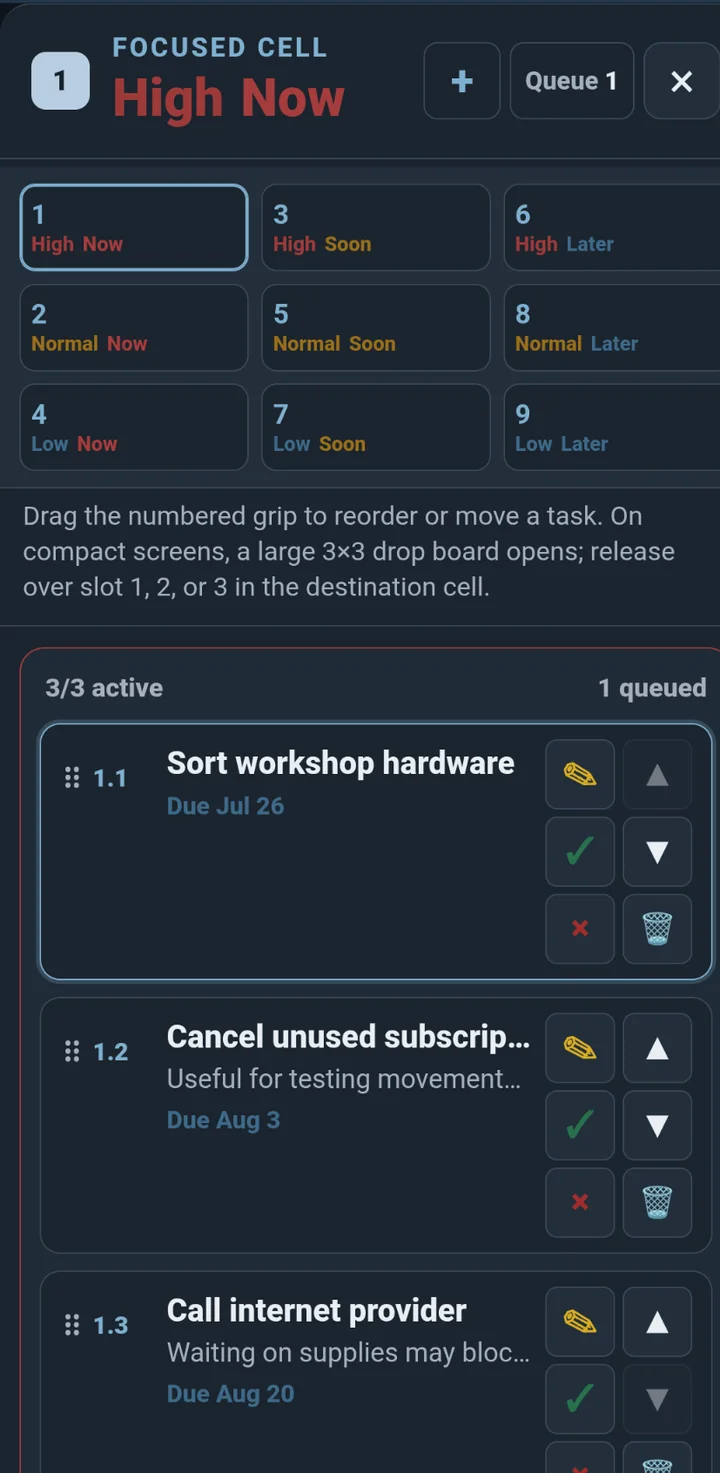
Moving into a full cell places the moved task at the selected slot and moves the old slot 3 task to queue position Q1. Moving within one cell changes only slot order.
↑ TopA shared Pad/List namespace
Pages, titles, and references
Pad pages and Lists share one case-sensitive Page-name namespace. A Title is the human-friendly display name; a Page name is the shorter exact link identity used inside saved references.
On a phone, Pad and Lists open on the full list of pages. Tap one to open it on its own; select ‹ Pages or ‹ Lists, or use your phone's back gesture, to return to the list. If you have unsaved edits, you are asked first. On a wider screen the list stays beside the open page.
| Concept | Use |
|---|---|
| Title | Readable display text. It may be longer and can change without changing the link identity. |
| Page name | Exact-case link identity shared by Pad and Lists. New or renamed Page names use letters, numbers, and hyphens only. |
[PageName] | Opens the saved Pad page or List with that exact Page name. |
[Link Text](https://example.com) | Creates a named external link when Link Text is not itself an existing Page name. |
| References / Referenced by | Shows outbound links from the current item and saved Matrix/Pad/List items that link back to it. |
When Page name is empty, leaving Title suggests a clean unique Page name; the suggestion never replaces a Page name you have already entered. Older pages created under the former looser rule may keep their legacy name unchanged until you deliberately rename them.
Renaming a saved Page name can atomically rewrite matching saved [OldName], Pad heading links, and Pad /img/OldName/… aliases. Deleting a page, or moving a List into Matrix, can leave inbound Page-name references unresolved because Matrix tasks do not have Page names.
Linked notes
Pad
Pad is a separate notes/reference module beside Matrix and List. Each page has a human-friendly Title, a shorter unique case-sensitive Page name used for links, Tags, Created/Modified timestamps, and optional uploaded browser-native images. Pad Notes are not subject to the 5,000-character Matrix/List Notes limit; practical size is governed by browser/account snapshot limits.
Page names and links
Title is the longer human-friendly label. Page name is the shorter link identity shared with List. New or renamed Page names contain only letters, numbers, and hyphens and must be unique by exact case. When Page name is empty, leaving Title suggests one and adds -2, -3, and so on when needed. Older pages created under the earlier looser rule may keep their existing legacy Page name unchanged until you deliberately rename them.
Use [PageName] in Pad, List, or a Matrix task's Notes/Actions to open an exact Pad or List page. Use [Link Name](https://example.com) for a named URL. If the visible Link Name exactly matches an existing Page name, the labeled-URL form is rejected so one label cannot ambiguously mean both an internal page and a URL.
Text, Plain, and Pretty
A Pad page has three views of the same stored text: Text, Plain, and Pretty. In Edit mode, Text and Plain are editable and Pretty is a non-editable preview labeled Preview. In Read mode none of them is editable.
Plain is the stored source. It leaves Markdown characters visible and applies only Task Matrix 3x3 link handling. Pretty renders that same source with the locally installed md-mini renderer. In Read mode, Plain keeps ordinary text plain while activating Task Matrix 3x3 links, and Pretty renders the full md-mini-compatible Markdown and activates safe links.
Text is for code and anything that has to line up: a fixed-width font, no word wrapping (long lines scroll sideways), and every line break exactly as typed. In Text, the Tab key types a tab instead of moving to the next field; with several lines selected, Tab indents them all and Shift+Tab un-indents them. Press Esc and then Tab to move on. Tabs are four columns wide throughout Pad. Spelling checks and automatic corrections are off in Text. Links work in Text Read mode just as they do in Plain.
In Plain, a line break inside a paragraph is soft: Pretty joins the two lines unless the first one ends with a backslash (\). Text has no soft breaks, so the two convert: a line break you type in Text is stored as a backslash at the end of the line, which Plain shows and Pretty turns into a line break, and Text hides those backslashes again. Viewing a page in Text changes nothing; typing in Text turns the page's soft breaks into hard ones.
Pretty supports md-mini formatting such as ATX headings (# through ######), lists, emphasis, code, tables, links, and images. Task Matrix 3x3 adds URL-scheme filtering around rendered links/images; unsafe schemes such as javascript: and data: are not activated. Pretty rendering is self-hosted with the app so normal use does not depend on a runtime CDN connection.
Heading links
Pad extends [PageName] with heading links. Use [#Heading Name] for the first matching heading on the current Pad page, or [PageName#Heading Name] for the first matching heading on another Pad page. Heading level does not matter: the target may use any of the six Markdown heading levels from # through ######. If the same heading text occurs more than once, the short link selects the first occurrence.
A heading link opens the target Pad in Read / Pretty mode and scrolls to the heading. Normal [PageName] links continue to open the page itself. Deep links are Pad-only because List does not have Markdown headings.
Pad image files
A saved Pad page on a linked writable device can upload PNG, JPEG, GIF, WebP, AVIF, or BMP images up to 10 MB each. Up to 100 images may be stored per page, subject to the account's 250 MB Pad-image limit. Task Matrix 3x3 stores each file under an opaque account/page identity so users and pages cannot collide and a Page-name rename does not require moving the physical file.
For Markdown, use the human-facing alias shown beside an uploaded file, for example . Before Pretty is displayed, Task Matrix 3x3 resolves /img/PageName/filename to the page's real account-isolated file URL. The stored note therefore stays readable and portable and never needs to contain the opaque internal storage path. Renaming a Page can rewrite saved /img/OldName/… aliases along with [OldName] references.
JSON backup includes image metadata/URLs, not copies of the binary files. The server files remain in place during normal backup/restore. Deleting a Pad page or Pad data schedules its uploaded files for cleanup, including after an offline deletion reaches the server.
Finding pages
Use Find page or tag at the top of the Pad page list to narrow larger collections by Title, Page name, or Tags. Search is incremental: the list changes as you type.
References and reading
In Pad Read mode, safe labeled links, normal Internet addresses, saved page/heading references, and Pretty-rendered links become clickable. Missing targets are shown as unresolved links. References: lists outbound page/URL references and Referenced by: identifies saved Matrix, Pad, and List items that link to the current page. Read mode has no editable fields; its bottom actions are Save copy and Edit. Save copy duplicates page text and metadata but does not duplicate uploaded image files. Each saved Pad page remembers Edit/Read and Text/Plain/Pretty choices on this device.
[PageName] or /img/PageName/…, the editor offers to rename the page and rewrite those saved Matrix/Pad/List references and human image aliases together. You may instead rename without rewriting, or cancel. Deleting a page still leaves ordinary saved references unresolved.Unprioritized checklist work
Lists
Lists is for work that belongs together but does not belong in the 3×3 priority grid. Lists have no Importance/Urgency ranking and no three-task limit. They live in one of two conceptual cells: 0:0 or 4:4.
Each List has a human-friendly Title followed by a shorter unique case-sensitive Page name used by [PageName] links, plus Tags, Created/Modified timestamps, and Notes/Actions content. The upper-right Edit / Read control changes between editing and a clean reading view. Each List remembers both its Edit/Read and Notes/Actions choices on this device. The Notes/Actions selector never changes automatically because a line happens to begin with an Action marker. In Read mode no List fields are editable, and the bottom actions are limited to Save copy and Edit.
List Notes/Actions are limited to 5,000 characters. In supporting browsers, the editor grows with its content instead of forcing long notes into an internal scrollbar.
| Control | Changes | Does not change |
|---|---|---|
| Edit / Read | Whether List fields are editable. | The stored Notes/Actions text. |
| Notes / Actions | How the same text is edited or presented while editing. | Whether the List itself is in Edit or Read mode. |
Finding Lists
Use Find list or tag at the top of the Lists panel to narrow the page list by Title, Page name, or Tags. This becomes especially useful once the workspace grows beyond a short visible list. Above it, the Lists filter decides which Lists appear at all; Find searches within them.
Cell 0:0 — timing available
Cell 0:0 supports schedules, recurrence, Daily Digest, optional individual reminders, and Complete/Skip/Cancel occurrence controls. Its Schedule button opens the same schedule editor used by Matrix tasks, including typed interpretation, quick schedules, recurrence controls, limits, exceptions, warnings, and preview.
The List page itself persists. Complete or Skip advances an active recurring List to its next scheduled occurrence and resets checked Actions for that next occurrence. Cancel ends the recurrence. A cancelled, one-time-finished, or exhausted schedule stays inactive when the List is later edited and saved; changing or adding its schedule is the explicit way to schedule it again. If unfinished Actions remain, Complete, Skip, and Cancel ask for confirmation. In Read mode, a List with a current occurrence also shows Finish all and Complete as-is beside Save copy and Edit. Finish all checks off every Action and then completes the occurrence, after asking, so its History entry shows every Action done. Complete as-is completes the occurrence with the Actions as they stand, and asks only when some are unchecked. The occurrence date leads the line under the List title, in Read and Edit mode alike. Its label matches the date's color: Overdue occurrence when it is past due, Current occurrence when it is due today, Upcoming occurrence within the next three days, and Future occurrence after that. Hover over the ? beside it to see when the List was created and last modified. A List with no current occurrence shows Check all and Clear all there instead: each asks, then checks or unchecks every Action, and nothing goes to History. Saving a 0:0 List when it contains at least one Action and all Actions are checked completes the current occurrence, matching Matrix task behavior.
A scheduled 0:0 occurrence is eligible for Daily Digest based on its due date/time even if it has no individual reminder. A timed List may also select individual reminders. Individual-reminder choices and current-occurrence controls remain hidden until a schedule exists. A green clock appears beside scheduled Lists and a contrasting bell appears beside Lists with individual reminders, both in the Lists panel and the current List eyebrow.
Cell 4:4 — no timing
Cell 4:4 is deliberately timeless. It has no schedule, due occurrence, reminders, recurrence controls, or Daily Digest participation. Use the List cell selector to move a List between 0:0 and 4:4. Moving into 4:4 asks before removing existing schedule/reminder timing.
Copies, moves, and links
When a new List has a Title but no Page name, leaving Title suggests a cleaned link name and automatically adds -2, -3, and so on if needed. Save copy creates an independent List; if the copy still uses the source Page name, Task Matrix 3x3 generates the first available copy name.
A saved List also has Move to matrix…. The Matrix task editor opens with the List content and supported 0:0 timing; choose Importance/Urgency and then save the move. If other saved items refer to the List as [PageName], Task Matrix 3x3 warns before the Page name disappears and those references become unresolved.
An existing Matrix task has Move to list…. The List editor opens with the task content and suggests a unique Page name from its Title; review or change it before saving. Choose cell 0:0 to retain supported timing or 4:4 to remove all date/time behavior. The source item is not removed until the destination saves successfully; cancelling leaves it unchanged.
[PageName] references can move among Pad pages, Lists, and Matrix task Notes/Actions.Protect work in progress
Unsaved edits and navigation
When navigation would replace unsaved Matrix, Pad, List, or explicit-save Settings changes, Task Matrix 3x3 stops first. Choose Save and continue to save and finish the requested navigation, Discard to continue without those edits, or Stay to keep editing.
Closing or reloading the browser while a real draft is dirty also uses the browser's standard unsaved-change warning. Links shown inside an unsaved editor remain inert until the item is saved so following a reference cannot discard the draft.
↑ TopOverflow work
Cell queues
Each matrix cell has three active slots and its own queue. A new task enters the queue when all three active slots are occupied.
Why promotion is manual
When you complete, cancel, delete, or move an active task, its slot stays open. Task Matrix 3x3 does not automatically decide which queued item should replace it. Open the queue and choose the task you want to promote.
Open and manage a queue
- Select Queue or Q on a cell. The number beside it is the number of waiting tasks.
- Use the cell tabs to inspect other queues without closing the window.
- Use Include grid tasks to show the active slots above the queue; this choice is remembered on the device.
- Use the up and down arrows to change order. Moving Q1 up promotes it to the grid; moving active slot 3 down demotes it to Q1.
- Select Promote to move a queued task into the grid, or Demote to move a shown active task to the front of the queue.
- Use Edit, Cancel, or Delete as needed.
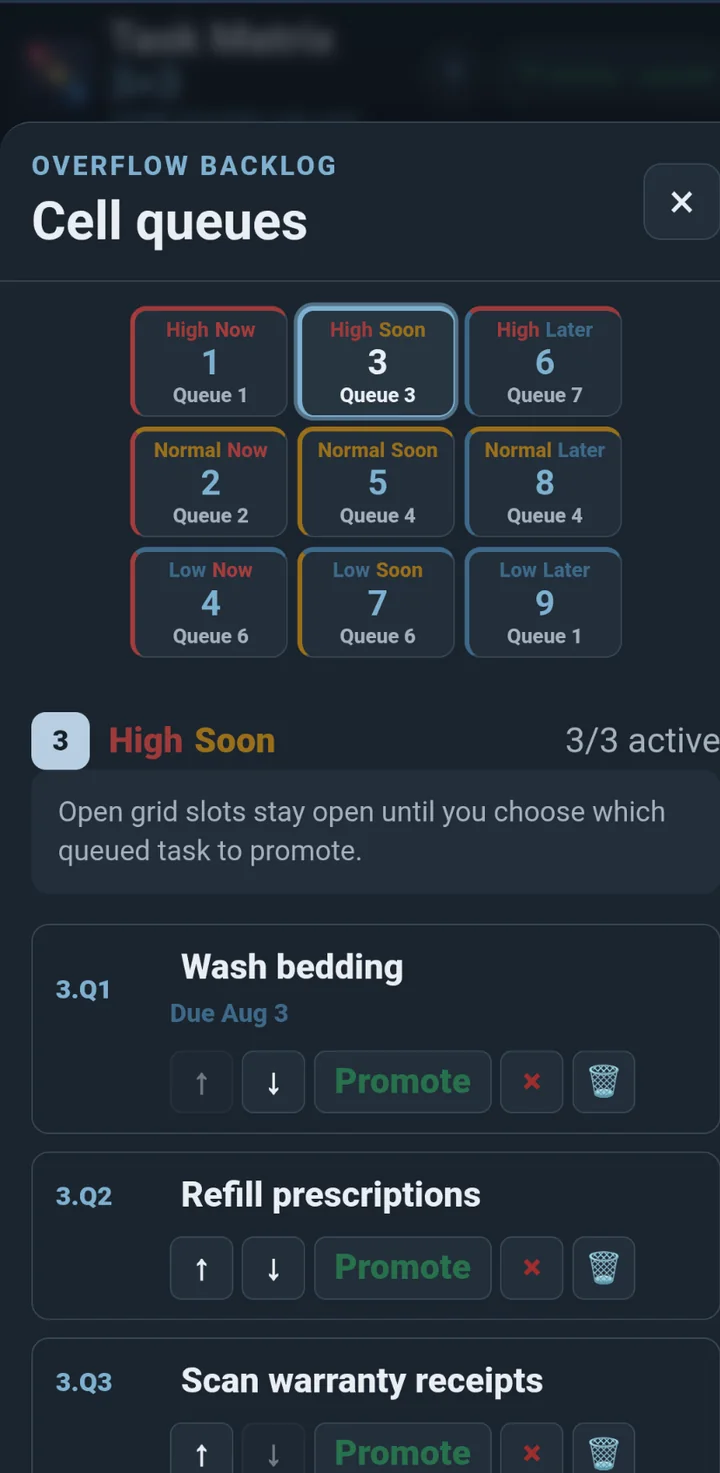
Promoting into a full cell
If the cell is already full, Task Matrix 3x3 asks whether to promote the selected task into slot 3. Confirming moves the previous slot 3 task to the front of the queue.
Queued task numbers use a Q, such as 5.Q1, 5.Q2, and so on.
↑ TopCalendar guidance without becoming a calendar
Schedules, due dates, and recurrence
Matrix tasks and cell 0:0 Lists share the same schedule interpreter and recurrence engine. They may have a due date, an optional due time, both, or neither. Task Matrix 3x3 has no separate Start date field, does not schedule work blocks, and does not manage project dependencies. A typed schedule may say where it begins (starting 10/5); that sets its first occurrence.
Due values
- A Due time requires a Due date.
- A Due date/time alone produces no email or log output.
- Timed Due values are stored in UTC and displayed in each device's local time zone.
- Date-only Matrix tasks remain calendar dates and use the end of that day for overdue display. Date-only 0:0 Lists are also eligible for Daily Digest on their due date.
Due-date colors
Due dates on Matrix tasks, ToDo titles, and a List's occurrence date share four colors. A List's occurrence takes its title from the same four: Overdue, Current (today), Upcoming, or Future occurrence.
| Color | Meaning |
|---|---|
| Overdue | The due date, or the due time, has passed. |
| Today | Due today, and any due time has not yet passed. |
| Upcoming | Due within the next three days. |
| Future | Due four or more days from now. |
Repeat after completion
A recurring schedule may use day, week, month, weekday, quarterly, annual, day-of-the-week (such as the 2nd Wednesday of the month, or the 4th Thursday of November), limit, and exception rules. The preview shows the interpreted upcoming dates before you save.
For a recurring Matrix task, Complete records completed History and creates the next occurrence; Skip records skipped History and creates the next occurrence; Cancel records cancelled History and ends the series. The next occurrence follows the prior schedule rather than the action date, skips missed dates, and fills an open slot or enters the same cell's queue.
For a recurring 0:0 List, the List page persists. Complete or Skip advances its current occurrence only; Cancel ends recurrence. Completed Actions reset when the next List occurrence is created. To complete or skip every missed occurrence at once, open the List's Schedule with Change and set When an occurrence is missed.
When an occurrence is missed
Each recurring Matrix task and 0:0 List has a When an occurrence is missed setting in the Schedule dialog. An occurrence counts as missed once the next one comes due while it is still open: a timed occurrence at the next occurrence's time, a date-only occurrence at the start of the next occurrence's day.
- Leave open (the default) changes nothing. The occurrence waits for you.
- Skip records each missed occurrence as skipped History and moves on to the next one.
- Complete records each missed occurrence as completed History. It never checks off unfinished Actions; a List's History entry notes how many Actions were done.
Every missed occurrence gets its own History entry, dated for its own day and labeled auto-skipped or auto-completed. The item then shows a small badge, such as 2 auto-skipped, until you next open it. Missed occurrences are handled on the device with Full access whenever the app is open, so a device left closed over a weekend catches up when it is next opened. If you switch an item that is already overdue to Skip or Complete, the dialog tells you how many occurrences that will handle as soon as you save.
A traditional view when you need one
ToDo View
ToDo is a first-class module between List and Pad. It combines Matrix work with optional List pages in one conventional execution view without creating duplicate items or a second data set.
Choose what the list shows
- Include queued tasks off: shows only active tasks.
- Include queued tasks on: shows active and queued Matrix tasks together. Queued numbers include Q.
- Include List items: adds List pages to the view. Cell 0:0 Lists are grouped before Matrix tasks; cell 4:4 Lists are grouped after Matrix tasks. Select a List title to open that List. A scheduled cell 0:0 List with a current occurrence gets ✓ Complete and ↷ Skip, the same as its Current occurrence card.
- Include Notes: shows the Matrix Notes/Actions source or List body beneath each item. This is useful when the Notes contain checklist/detail text needed while working the ToDo view. Actions appear as checkboxes you can check off right there; checked Actions are struck through.
- Items per page: choose 10, 25, 50, 100, or All. Use First and Last to jump to the ends, Prev and Next to move one page, or -10 and +10 to move up to ten pages at a time.
Every ✓ Complete in ToDo, on Matrix tasks and on scheduled cell 0:0 Lists, has ✓✓✓ Finish all beside it. Finish all checks off every Action and then completes, after asking, so History records the work as all done. ✓ Complete still completes with the Actions as they stand, and asks first when some are unchecked. A List with no current occurrence (cell 4:4, or 0:0 with no schedule) has nothing to complete, so its row offers ✓✓✓ Check all and ☐ Clear all instead.
Sort order
| Sort | Order |
|---|---|
| Priority #.# ascending | Uses the active Favor Importance, Favor Urgency, or Custom grid pattern, then each task’s active or queue position. |
| Due date ascending, then priority | Earlier due dates first. Undated tasks follow dated tasks. |
| Due date descending, then priority | Later due dates first. Undated tasks follow dated tasks. |
Select a Matrix task title to edit it and select its checkmark to complete it. Select a List title to open that List. ToDo has its own Filter, independent from the Matrix Filter. Its filter can search Matrix tasks and included Lists; List Title/Page name, tags, notes, and due date participate where selected. Importance and Urgency apply only to Matrix tasks. Saved filter definitions are shared so the same saved expression can be applied independently in either module. Changing a custom priority pattern immediately changes Matrix priority numbers and the priority-sorted Matrix portion of ToDo.
↑ TopFind and focus
Viewing filters
Matrix, ToDo, and Lists each have an independent active filter. Matrix Filter changes what you see in the grid; ToDo Filter changes only the cross-module ToDo view; Lists Filter changes which Lists appear in the Lists panel. No filter edits, moves, queues, deletes, or synchronizes item data. Each view has a filter panel, above Active tasks in Matrix, above Sort order in ToDo, and at the top of the Lists panel, holding the Filter button. Each view keeps its filter on this device until you clear it, including after the app reloads. To have every device show the same filters, turn on Views follow me across devices. While a filter is on, the panel shows its name (a saved filter's name, or Custom filter for one you typed) and its expression, with a Clear link; otherwise it reads No filter - showing everything.
Start with a simple search
Enter one word or phrase and select the fields to search. Examples:
deck
#house
today
overdue
high and now
Select Task (shown as Task / List in ToDo), Tags, Notes, Importance, Urgency, and/or Date. The expression needs at least one selected field. Use All or None to change the field selection quickly. ToDo searches List Title/Page name through Task / List, and the Lists filter through List; Importance and Urgency do not apply to Lists.
0:0 and 4:4 name the two List cells. In ToDo and Lists, the term 0:0 or 4:4 matches the Lists in that cell, whatever fields are selected and whatever Favor is set to: #vehicles and 4:4, or not 4:4 to keep timeless Lists out of ToDo. It matches the cell, not text, and never matches a Matrix task. To find one Matrix cell, use its Importance and Urgency, such as high and now.
Combine terms
| Word form | Symbol form | Meaning |
|---|---|---|
and | && | Both sides must match. |
or | || | Either side may match. |
not | ! | Exclude whatever follows. |
| Parentheses | ( ) | Control which parts are evaluated together. |
| Quoted phrase | "call supplier" | Keep several words together as one search term. |
| Date phrase | next 10 days | Several words with no quotes and no operator between them are read as a date range. |
not is applied first, then and, then or. Parentheses are the clearest way to express exactly what you mean.
Examples from simple to advanced
#deck and today
#deck and not paint
"call supplier" and (today or tomorrow)
high and now
#deck and @bob and not(stain or paint)
not(#deck and @bob and not(stain or paint))
#deck && @bob && !(stain || paint)
!(#deck && @bob && !(stain || paint))
Date searches
When Date is selected, Task Matrix 3x3 recognizes:
- ISO dates such as
2026-07-16. - U.S. numeric dates such as
7/16/2026. - Month-name dates such as
July 16 2026or16 July 2026. today,tomorrow, andyesterday.due,overdue, andpast due.- Partial displayed date text such as
July. - Weekday names such as
friday, andweekend. A single word also still searches as text, sofridayfinds tasks due Friday and tasks that mention Friday.
Date ranges
Type a range in plain words, with no quotes: this week or overdue, next 10 days and #deck. A range matches items whose due date falls inside it; items with no due date never match, and a range never includes overdue items - add or overdue when you want them. Date ranges need Dates and times selected. To search for the words themselves, put them in quotes: "this week".
Weeks run Sunday to Saturday, and weeks, months, and years are calendar units. A number of units starts with the current one; next starts with the one after it. On Wednesday, October 7:
| Type | Covers |
|---|---|
this week | Wed Oct 7 - Sat Oct 10, the rest of this week |
next week | Sun Oct 11 - Sat Oct 17 |
2 weeks | Wed Oct 7 - Sat Oct 17, the rest of this week and next week |
next 2 weeks | Sun Oct 11 - Sat Oct 24 |
3 days | Wed Oct 7 - Fri Oct 9, today and the next two days |
next 3 days | Thu Oct 8 - Sat Oct 10 |
this month | Oct 7 - Oct 31, the rest of the month |
next month | Nov 1 - Nov 30 |
this year | Oct 7 - Dec 31 |
this weekend, next weekend | Sat Oct 10 - Sun Oct 11; Sat Oct 17 - Sun Oct 18 |
friday, next friday | Fri Oct 9, the next Friday after today, as in Schedule |
last week, last month, past 3 days | Sun Sep 27 - Sat Oct 3; Sep 1 - Sep 30; Sun Oct 4 - Tue Oct 6 |
by friday | Wed Oct 7 - Fri Oct 9 |
before 10/15, after 10/15 | Anything due before October 15 (overdue included); anything due after it |
10/15 through 10/20 | Oct 15 - Oct 20 (also thru, to, or -) |
Numbers may be written as words: two weeks. Numeric dates follow your Settings date format. A date typed without a year means the one nearest today, so by 1/5 typed in December means next January.
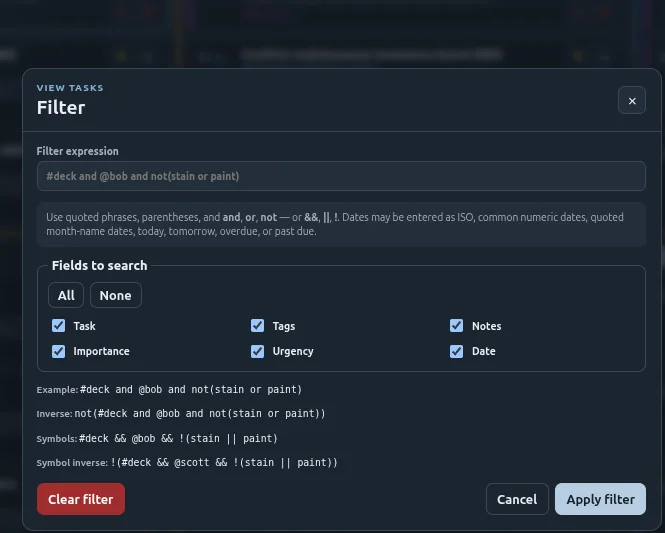
Save and recall a filter
- Build and test the expression and selected fields.
- Select Save as…, enter a useful name, and select Save. A saved filter keeps both the expression and field choices.
- Later, open Filter, choose the name from Saved filters, and select Apply.
- Select Cancel to close the Filter dialog without changing the active filter. Select Delete to remove the selected saved definition; it does not delete tasks.
Saving with an existing name asks before replacing it. Saved filters are included with task-data snapshots and JSON backups, so they can follow the shared task copy rather than being tied only to one browser.
When tasks seem to disappear
Look at the filter panel first. A filtered-out task is still present. Select Clear in the panel (or Clear filter in the dialog) to restore the full grid and list.
If an expression is invalid, Task Matrix 3x3 displays an error and does not apply it. Check unmatched quotes or parentheses and make sure at least one field is selected.
↑ TopCompleted, skipped, and cancelled work
History
History keeps tasks that you marked Completed, Skipped, or Cancelled, and every completed, skipped, or cancelled occurrence of a scheduled 0:0 List. It lets you review what happened, restore a task, or permanently remove an entry. Use Search to match the title, tags, notes, cell, List name, or status; narrow by Completed/Skipped/Cancelled and by event-date range; then choose how many events to show per page.
Occurrences handled by a missed-occurrence setting read auto-skipped or auto-completed and are dated for the occurrence they stand for, not the moment the app handled them. List entries show List and the List's name; they can be deleted but not restored, because the List itself has already moved on. A List also shows its own entries under Occurrence history in the List editor.
| Status | How it gets there | Can it be restored? |
|---|---|---|
| Completed | You selected the checkmark. | Yes. |
| Cancelled | You selected X and confirmed cancellation. | Yes. |
Find and page through History
The summary shows how many events match out of the total. Use First, -10, Prev, Next, +10, and Last to move through longer results. Clear removes the History search and filters without changing any event.
Restore a task
- Open Settings.
- Select History.
- Find the task and select Restore.
The task returns to its saved Importance/Urgency cell. It occupies an open active slot when available; otherwise it goes to that cell’s queue.
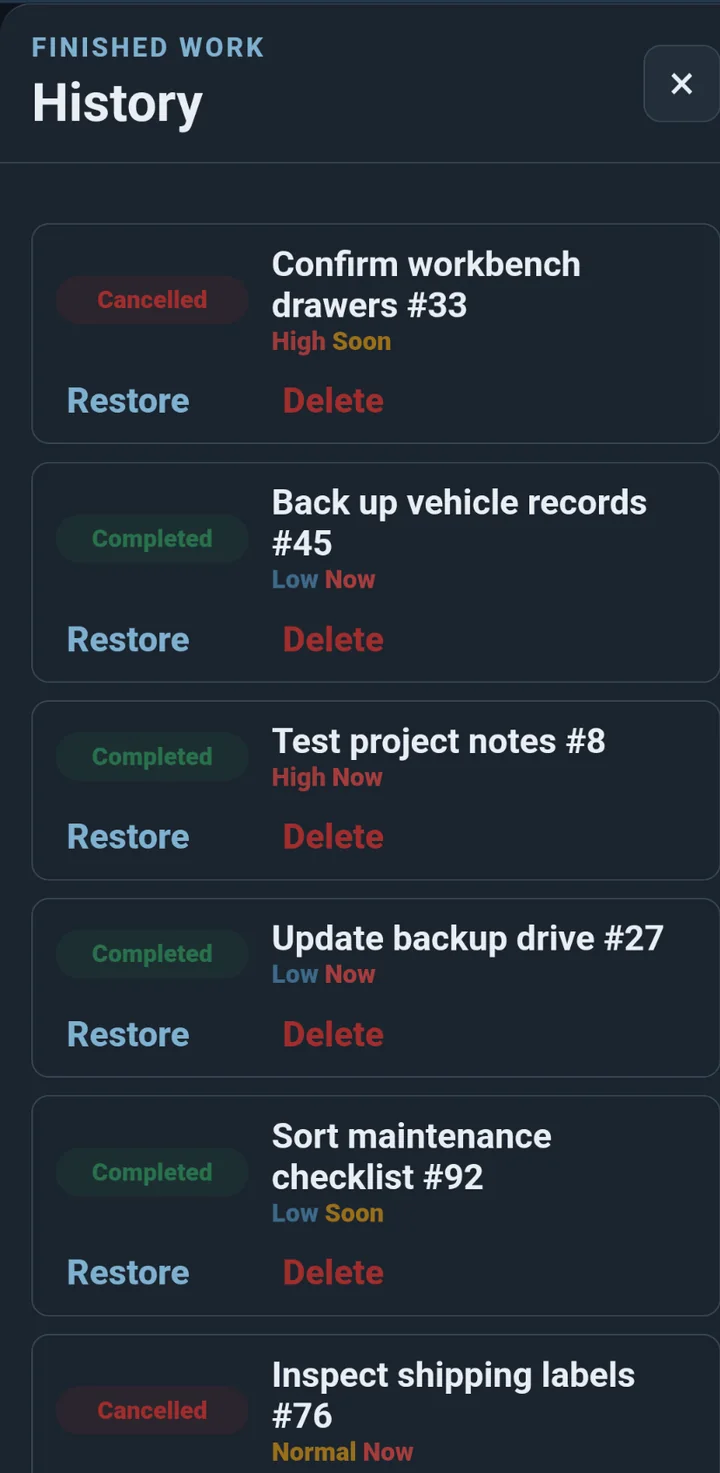
On a connected account, restoring or deleting History changes task data and therefore requires editing control.
↑ TopOne place to personalize and manage
Settings
Settings is the fifth top-level module after Matrix, Lists, ToDo, and Pad. It is the routine home for app preferences, account and device management, reminder delivery, History, backup tools, and sharing. Focused operations may open a dialog and return you to Settings when finished.
| Area | What it controls | Scope |
|---|---|---|
| Favor / Custom priority | Standard Importance or Urgency order, or your own priorities 2–8. | This device or My account. |
| Grid orientation | Whether Importance or Urgency runs down the rows. | This device or My account. |
| Tag definitions | One-character tag meanings shown by editor help. | Included in workspace snapshots and backups. |
| Initial view | Which view the app opens to: Matrix, ToDo, Lists, or Pad. | This device. |
| Text size | App text on large and compact screens. | This browser. |
| Views follow me across devices | Whether every device shows the same filters, ToDo options, and queue choice. | Account-wide; off by default. |
| Account services and devices | Create/reset account access, login, profile, password, pairing, device access, control, snapshots, and deletion. | Account-wide where applicable. |
| Time zone | How wall-clock schedules are interpreted and reminder dates/times are formatted. | Account-wide. |
| Reminder delivery | Email or Log, date order, delivery offset, testing, logs, and included fields. | Account-wide. |
| Daily Digest | One daily summary of scheduled Matrix tasks and Lists due within a configured time window. | Account-wide. |
| History | Search, restore, or permanently delete completed, skipped, and cancelled tasks. | Task data. |
| Backup / Restore | Export, Merge, or Replace portable Matrix, Pad, List, and shared-preference data. | Current browser, then shared by the Active writer. |
| Import | Bring tasks in from Todoist or another app's CSV or JSON export; undo a recent import. | Task data. Saved maps travel with your account. |
| Delete data | Delete Matrix, Pad, List, or all workspace content while retaining device/account registration and local display preferences. | Current browser, then shared by the Active writer. |
| Share 3x3 | Public address and QR code. | No setting changes. |
Login-on-demand
Some actions require the account owner's login: approving a waiting device, editing Name or Phone, changing the password, managing registered devices, restoring snapshots, or requesting account deletion. When you request one while logged out, an in-app login dialog opens and returns you to Settings after successful login.
Create account and Reset password requests also open in an in-app account-services dialog. Email confirmation and the reset-token link sent by email still land on the secure Account page. A paired device credential and an account-login session are different. A device can synchronize without leaving the account owner permanently logged in.
Switching grid preferences to My account
The first time you choose My account, choose whether to publish this device's current Favor, Custom pattern, and orientation or adopt the account's existing values. Text size remains local. Saved filters and tag definitions travel with task snapshots rather than grid-preference scope.
Initial view
Choose which view the app opens to: Matrix, ToDo, Lists, or Pad. Each device keeps its own choice, so a phone can open on ToDo while a desktop opens on the Matrix. It is not part of Views follow me across devices. A link that names a view or a page still opens there.
Views follow me across devices
Off, each device keeps its own views: the Matrix, ToDo, and Lists filters, ToDo's sort, page size, and Include choices, and the Matrix queue's Include grid tasks choice. On, every device shows the same views, so moving from phone to desktop to tablet picks up where you left off. The views come from the device with Full access: each change there goes out right away, and other devices adopt it with their next update. A device without Full access may still adjust a view, but its change lasts only until that next update or a reload.
The switch is account-wide and travels with your tasks, so only the device with Full access can change it. Turning it off leaves each device showing what it showed last. Text size and grid preferences are not part of it; they have their own settings.
↑ TopOptional online services
Accounts and devices
You do not need an account to use Task Matrix 3x3. Without one, Matrix, Pad, List, and local preferences stay in that browser profile and the app continues to work offline.
What an account adds
- Shared snapshots and retained recovery versions.
- Email or private-log reminders while the app is closed.
- Optional use on more than one registered browser or device.
- Single-writer handoff so devices do not overwrite one another.
- Account-shared priority and grid preferences.
Create and confirm an account
- Open the Account page and choose Create an account.
- Enter Name, Email, Phone, and a password of at least ten characters.
- Use the confirmation link sent to the account email address.
- Return to the app and open Settings for routine management.
The Account page remains responsible for registration, email confirmation, login recovery, and forgotten-password reset. Routine profile and device work is in Settings.
Pair this browser or device
- Open Settings → Account services and devices.
- Enter a recognizable device name and select Get a code.
- Select Approve this device.
- When the login dialog appears, enter the account email and password.
- Wait for the app to confirm pairing, or select Check.
The code identifies the waiting browser; the login identifies its owner. If the code expires, cancel it and generate another.
Connect another device
Repeat the same steps on the additional browser. Only one Full-access device edits at a time. Export a JSON backup before pairing a browser that already contains important local workspace data.
↑ TopKnow what this device may do
Device status
The header device-control indicator and Settings → Account services and devices show whether the current browser may edit and how it relates to the account.
| Status | What it means | What you can do |
|---|---|---|
| Active | This full-access device currently has editing control. | Edit normally, work offline if necessary, and select Sync now when online. |
| Sync failed · retrying | This Active device could not upload its changes, usually because the server could not be reached. Your changes are kept on this device. | Keep working. It retries by itself: every 2 seconds at first, slowing to once a minute during a long outage. A new edit, reconnecting, or Sync now tries again right away. |
| View only | This is a full-access device, but another device currently has control. | View and refresh shared data, or select Take control. |
| Requesting control | This device requested control and is waiting for the active device to save and release it. | Wait, or cancel the request. |
| No response to request | The active device did not release control before the request's deadline. It may be closed, offline, or asleep. | Keep waiting, cancel the request, or use Force takeover. |
| Viewer only | The account owner restricted this device to viewing. | View and refresh data. It cannot request control, upload changes, or edit tasks. |
| Disabled | The account owner blocked this device’s access. | Log in through Settings on an allowed browser and change its access under Registered devices. |
| Access removed / Revoked | The device registration was removed from the account. | Generate a new pairing code and register it again if access is still wanted. |
Full access, Viewer only, and Disabled are account choices
Under Settings → Registered devices, each device has an access selection:
- Full access allows the device to become Active or temporarily View only.
- Viewer only allows shared-data viewing but never editing or takeover.
- Disabled blocks shared workspace data and account controls on that device.
View only is temporary control status. Viewer only is an access restriction. They are not the same.
↑ TopOne editor at a time
Taking control
Task Matrix 3x3 uses one active editor per account. This prevents two devices from independently changing the same shared workspace and overwriting one another.
Normal handoff
- On a full-access View-only device, select Take control.
- The active device notices the request, pauses new edits, saves any pending changes, and releases control.
- The requesting device loads the most recently synced shared copy.
- The requesting device becomes Active and may edit.
When you selected an action such as Edit or Complete before requesting control, Task Matrix 3x3 remembers that action and resumes it after control is successfully obtained.
When the active device is unavailable
If the active device is closed, offline, lost, or otherwise unavailable, the request shows Requesting control until its deadline passes. Then the status changes to No response to request and a red Force takeover button appears.
When the former active device later reconnects, Task Matrix 3x3 protects any unsynced local work as an exportable recovery copy before it replaces that local view with the current shared data.
Device-control dialog
- Sync now asks the Active device to upload current changes immediately.
- Refresh data asks a View-only or Viewer-only device to check for and download the latest shared copy.
- Release control in the header device-control dialog gives up editing control without assigning it to a particular device. Another full-access device can then take control.
Visible connected devices normally notice control or task changes within a few seconds while online. There is no need to keep manually refreshing under normal conditions.
Unregister this browser versus Remove from account
Unregister deletes this browser's registration credentials only. The device remains under Registered devices. Remove there revokes its server access; it must be paired again to reconnect.
↑ TopIndividual output and a daily summary
Reminders
Scheduling and reminders are separate. A Matrix task or 0:0 List can have a date or recurring schedule without sending individual output. Pad and 4:4 Lists never participate in date/time reminders. Task Matrix 3x3 has no Start reminder model.
| Item | Individual reminders | Daily Digest |
|---|---|---|
| Matrix task | Yes, when it has a due time and a reminder lead is selected. | Yes, when its scheduled occurrence falls in the digest window. |
| List 0:0 | Yes, when it has a due time and reminder choices are selected. | Yes, when its scheduled occurrence falls in the digest window. |
| List 4:4 | No. | No. |
| Pad | No. | No. |
Individual reminders
- The Matrix task or 0:0 List needs a scheduled date and time.
- Select Edit reminders, choose Reminder 1, 2, or 3, then select its lead time from the Minutes, Hours, or Days columns.
- The Active device must sync the changed item to the account.
The reminder dialog starts on Reminder 1. Each reminder button shows its currently selected lead time, and Save reminders commits the three-slot draft. Available leads range from At the due time through 14 days before; the same lead cannot occupy two slots.
Include Notes is an account-level output choice shared by individual reminders and Daily Digest. When enabled, Matrix Notes are included and List bodies/items are included with line breaks preserved so checklist content stays readable. When disabled, neither Matrix nor List Notes are added to the message.
Daily Digest
Daily Digest is a once-daily summary of scheduled items due during the account's configured window. It can include Matrix tasks and scheduled Lists, and it is separate from individual reminder lead times. Choose the send time and the From/Through times that describe the due-item window. The Digest section exposes the shared Include Notes choice so checklist/detail content can be included when desired.
- When From and Through are the same, the window spans the next 24 hours from that time.
- When Through is later, the window is within the same day.
- When Through is earlier, the window crosses midnight.
- Date-only scheduled items remain date-only and appear in the digest for their due date.
Send individual reminders in addition to digest controls overlap. When enabled, selected individual reminders still arrive even when the item appears in the digest. When disabled, a digested item's selected reminders are suppressed; reminders for scheduled items outside the digest window still arrive.
Interval processing
The reminder worker runs on the administrator-selected 5, 10, 15, 20, 30, or 60 minute clock interval. Requested times are assigned to the boundary on or before that minute, so delivery is approximate and may be early. A reminder created after its boundary may be handled by the next run. Mail-provider delivery may add more delay.
Account configuration
Open Settings. Schedule and reminder choices are shared by the account and follow the latest accepted snapshot/settings state.
| Setting | Behavior |
|---|---|
| Time zone | Interprets wall-clock schedules and formats reminder output. Use an IANA name such as America/New_York or the device-zone shortcut. |
| Date format | Choose US MM/DD/YYYY or International DD/MM/YYYY. Numeric input follows that one order; ISO YYYY-MM-DD is always accepted. Two-digit years mean 20YY. |
| Deliver reminders by | The administrator controls which methods are available. Email sends through the configured email service. Log file writes to your account-specific private log. Both does both. |
| Delivery offset | Adds 0, 1, 5, 10, or 15 minutes to every individual reminder lead. |
| Daily Digest | Enable one daily scheduled-item summary, choose its send time and due window, and decide whether digested items also receive individual reminders. |
| Fields included | Task, Tags, Notes, Importance, Urgency, and Due date/time. Select only information appropriate for email or logs. |
| Test and log viewer | Test reminder delivery immediately exercises the selected path. When Log is available, View reminder log opens your own paginated entries. |
| Processing interval | Read-only for users. The administrator selects 5, 10, 15, 20, 30, or 60 minutes. |
Email requirements
- The account email address is confirmed.
- At least one registered device is not Disabled or Revoked.
- Settings selects Email or Both, and the administrator has enabled Email.
- The account reminder service and email delivery are working.
Log delivery does not send email. It writes the same output to an account-specific private log that the signed-in account can browse. Both writes the log and sends the email. Task Matrix 3x3 mail and maintenance log files carry an explicit UTC timestamp so the log content is self-dating even when copied outside the app.
What arrives
Ready individual reminders and Daily Digest item summaries are grouped separately. Each logical entry has a unique delivery record to suppress duplicates and cap failed attempts.
Change or stop reminders
Edit the Matrix task or List, its schedule, or its Reminder fields, or Complete, Skip, Cancel, or delete it; then sync the Active device. Complete and Skip create the next recurring occurrence. Cancel ends the series. A timed item with all Reminder fields set to None produces no individual reminder; a date-only item may still appear in an enabled Daily Digest.
Without an account, reminders cannot be processed reliably while the app is closed because the scheduled item data remains only in that browser.
↑ TopRoutine management without leaving the app
Account management
Open Settings → Account services and devices. Log in through the in-app dialog when an operation requires the account owner's session.
Profile and password
- Change Name or Phone after entering the current password.
- Email remains the account identifier and is shown in the account summary; Registration information contains only editable Name and Phone fields.
- Change the password by entering the current password and a new password of at least ten characters.
- Use Create account / reset password in Settings when you cannot log in. The reset request opens in-app; the emailed reset-token link opens the secure Account page to choose the new password.
Registered devices
Settings lists device names, access modes, the Active writer, and current control. From there you can rename a device, choose Full access/Viewer only/Disabled, remove its credential, or release account control.
Retained snapshots
Settings lists retained shared snapshots and storage use. Restoring one protects the current shared copy, makes the chosen revision current, releases control, and requires every device to refresh. Delete removes one older copy; Delete all removes every older retained copy after confirmation while keeping the current shared copy.
Delete the account
Requesting deletion immediately blocks account and device access. During the grace period, log in through Settings and cancel the request. After the grace period, account data, devices, snapshots, preferences, sessions, and tokens are permanently removed.
Protect your work
Backup and recovery
Task Matrix 3x3 provides three different recovery layers. They solve different problems and should not be confused with one another.
Download a JSON backup
- Open Settings → Backup / Restore.
- Select Export backup.
- Store the downloaded JSON file somewhere you can find it.
The versioned JSON backup includes Matrix tasks and History, Pad pages, Lists, and portable shared preferences such as priority/grid choices, saved filters, and tag definitions. It deliberately excludes device registration credentials and device-local editor/view preferences. Pad image metadata/URLs are included, but the uploaded binary image files remain in account-isolated server storage rather than being embedded in the JSON file.
Import: Merge or Replace
| Choice | What it does | Use it when… |
|---|---|---|
| Merge | Keeps current Matrix, Pad, and List data; adds imported Matrix tasks; adds imported Pad/List pages only when their exact case-sensitive Page name is not already in use. Existing portable preferences win when the same preference already exists. | You want to combine data without overwriting an existing Pad/List Page name. Any skipped Page-name conflicts are reported after import. |
| Replace current data | Replaces Matrix, Pad, List, and portable shared preferences with the backup. Device/account registration and device-local editor/view preferences are retained. | The backup should become the complete current portable workspace. |
The Replace checkbox is off by default. Export the current data before either import when it matters. Backups identify their format version; a newer unsupported format is rejected instead of being partially imported.
Delete Matrix, Pad, List, or all workspace data
Open Settings → Delete data to choose one of four scopes: Matrix data, Pad data, List data, or ALL workspace data. Each destructive action requires two confirmations. Account/device registration and device-local display/editor preferences are retained.
Retained account snapshots
Settings lists older shared snapshots with their date, size, source device, and reason they were saved. Restoring one:
- Protects the current shared data in a safety snapshot.
- Makes the selected older version the new shared version.
- Releases editing control.
- Requires every connected device to refresh before continuing.
Deleting a retained snapshot removes only that recovery version. Delete all removes every older retained snapshot after confirmation. Both actions preserve the current shared data, but deleted recovery copies cannot be restored.
Recovery copy after force takeover
If another device forced control while the old Active device had unsynced changes, the old device preserves those changes locally when it reconnects. Open Settings → Account services and devices and select Export recovery copy.
The recovery copy is not merged automatically. Review it as a separate backup and decide what to re-enter or import.
Before clearing browser data
Export a JSON backup first. A browser’s general Clear site data or profile reset can remove locally saved tasks and device registration. Do not assume that every local change has already synced.
↑ TopMove in
Import from Todoist and other apps
Open Settings → Import to bring tasks in from a CSV or JSON export. Import has three steps, and nothing is saved until the last one. It needs Full access, as restoring a backup does.
- Files. Choose one or more .csv or .json files. Each shows what it was recognized as and how many records it holds. Its Project box starts with the file name, and a Todoist file named Home Reno [6Crf…].csv becomes Home Reno; change it or clear it. Then choose what the import makes, Matrix tasks, One List per project, One List per section, or One List per task; for Lists, the List cell they go in, 0:0 or 4:4, which this device remembers for the next import; and which map to use.
- Map. Each 3x3 field takes its value from a column, a fixed value, or nothing. Urgency can also come from the due date: overdue or due within 2 days is Now, within 14 days is Soon, and anything later or undated is Later. When Importance, Urgency, or Done comes from a column, a table matches each of that column's values to a 3x3 value, and a record with several values (labels, for example) takes the highest. Also add to notes keeps other columns as "Name: value" lines.
- Preview. The totals, where Matrix tasks land (each cell fills to three active and the rest queue), any problems with their file and row, and a sample. The Import button saves it all at once.
The files in one import share one map, so import files from different apps separately.
The project becomes a tag made with your Project symbol from Tag definitions, such as #home-reno. In One List per project, each record is a checklist line with its notes, due text, and tags beneath it; a project too long for one List continues in a second. In One List per section, each section of a project is a List of its own, titled Project: Section, such as Home Reno: Phase 1, tagged with both, such as #home-reno =phase-1, and laid out the same way; tasks above the first section go to a List named for the project and tagged with the project alone, and a file without sections gets one List per project.
Todoist
Todoist's backup is a .zip holding one CSV file per project. Unzip it, then choose the project files. Import recognizes them and picks the built-in Todoist map: p1 and p2 become High importance, p3 and p4 Normal; @labels and section names become Label tags such as =asap; comments join their task's notes; and subtasks become checklist lines in their parent's notes. Todoist writes this year's dates without a year, so a date such as Sep 21 goes in the nearer year instead of a year ahead. Repeating dates start from today.
Due dates
Due text is read as the Schedule box reads it: every monday, Oct 12 at 5pm, 2026-10-12. Text that cannot be read leaves the item undated, keeps the text in its notes as Imported due: …, and is listed in the preview. Lists in 4:4 have no schedule, so One List per task into 4:4 keeps each due date as typed, on a Due: … line in the List, and the preview says how many.
Saved maps
Name a map and select Save map to use it again; saved maps travel with your account and your backups. Export map downloads it as a small file to share, and Load map file… reads one. The built-in Todoist map cannot be changed, but an edited copy can be saved under another name.
Undo an import
The Import dialog lists your last ten imports. Undo removes everything that import created, including items you have changed or completed since, and nothing else. The confirmation says how many were changed.
↑ TopUse it like an app
Install and update
Installation is optional. Task Matrix 3x3 works in a normal browser tab, and an installed copy uses the same data for that browser profile.
Install on desktop or Android
Use the browser’s Install control when offered. Depending on the browser, it may appear in the address bar or application menu. If the Install control is unavailable, you can continue using the browser version.
Install on iPhone or iPad
- Open Task Matrix 3x3 in Safari.
- Select the Share button.
- Select Add to Home Screen.
- Confirm the name and select Add.
Updates
Task Matrix 3x3 checks for a new app release and normally updates itself. Close extra Task Matrix 3x3 tabs or windows, reopen while online, and check the footer to see the version and build currently running.
Your saved Matrix/Pad/List workspace data is separate from the downloadable app files, so a normal application update should not remove it.
Safe update recovery
Use recover.html only when Task Matrix 3x3 remains stuck on an old version after closing and reopening it online. The recovery page removes old downloadable app files while preserving workspace data saved in the browser.
What changes when you connect an account
Data and privacy basics
- Without an account: Matrix, Pad, List, and local settings stay in the current browser profile unless you export them. Pad image upload is unavailable because image files live in account-isolated server storage.
- With an account: connected devices send complete shared workspace snapshots to the account service so Matrix/Pad/List data can sync and recover, and scheduled Matrix/List items can generate reminders.
- Email reminders: only the configured output fields are placed in reminder messages; each entry identifies whether it is a Matrix Task or List.
- JSON backups: include Matrix/Pad/List workspace data and portable shared preferences, but not device registration credentials or device-local editor/view preferences.
- Device access: the account owner can restrict a registered device to Viewer only, disable it, or remove it.
This page explains product behavior, not the full legal policy. Use the application’s published privacy information for formal terms.
↑ TopFor experienced users
Quick reference
Priority order
| Priority | Favor Importance | Favor Urgency |
|---|---|---|
| 1 | High Now | Now High |
| 2 | Normal Now | Soon High |
| 3 | High Soon | Now Normal |
| 4 | Low Now | Later High |
| 5 | Normal Soon | Soon Normal |
| 6 | High Later | Now Low |
| 7 | Low Soon | Later Normal |
| 8 | Normal Later | Soon Low |
| 9 | Low Later | Later Low |
Task controls
✎ Edit ▲/▼ Reorder ✓ Complete ↷ Skip × Cancel 🗑 Delete permanently ⠿ Drag
Filter operators
and / && or / || not / ! parentheses single or double quoted phrases.
Date/time searches examine Due values. Terms include ISO, U.S. numeric, month-name dates, today, tomorrow, yesterday, due, overdue, and past due. Saved filters retain the expression and selected fields.
Reminder checklist
Individual: timed Matrix task or 0:0 List + at least one individual reminder + Active device synced. Daily Digest: enabled digest + a scheduled item due within its configured due-item window (or a date-only item due on the digest date). For Email delivery, also require a confirmed account, enabled registered device, a working account reminder service, and working email delivery.
Backup choices
Export creates your file. Merge keeps current workspace data, adds imported Matrix tasks, and adds non-conflicting Pad/List pages. Replace makes the backup the current local set. Retained snapshot restore changes the shared account version for all devices.
Device controls
Sync now: upload Active changes. Refresh data: download latest shared data. Take control: request normal handoff. Force takeover: use the last synced shared copy when the old Active device is unavailable.
↑ TopTroubleshooting by symptom
Common problems
Tasks, queues, and filters
Tasks seem to be missing
Check the filter panel above Active tasks. If it names a filter, select Clear. Also check the cell queue and History. A fourth task in a cell goes to its queue, and completed, skipped, or cancelled work goes to History.
I added a fourth task but do not see it in the cell
Select the cell’s Queue or Q control. A cell displays only three active tasks; additional tasks wait in its queue.
An active slot is empty even though the queue has tasks
Queue promotion is manual. Open the queue and select Promote on the task you want to bring forward.
I completed, skipped, or cancelled a task by mistake
Open Settings → History and select Restore. The task returns to its original matrix cell or that cell’s queue.
A filter expression will not apply
Make sure at least one field is selected. Check for unmatched quotes or parentheses. Try a simpler expression first, then add operators one at a time.
My saved filter is not listed
Confirm that you selected Save as… and completed the name dialog. On a connected account, saved filters follow the latest accepted task-data snapshot, so refresh or sync after a handoff.
A tag character has the wrong meaning
Open Settings → Tag definitions and edit it. Definitions are guidance only; changing one does not rewrite existing tag text.
Why are List reminder or current-occurrence controls missing?
They appear only when the List is in cell 0:0 and has a schedule. A 4:4 List is intentionally timeless. A scheduled 0:0 List shows a clock; the bell appears only when at least one individual reminder is selected.
Why did moving a List to 4:4 remove its schedule?
That is the defining boundary of 4:4. Task Matrix 3x3 confirms before removing schedule/reminder timing. Move the List back to 0:0 and add a new schedule if it should become timed again.
Why does Matrix → List need a Page name?
Pad pages and Lists can be targets of [PageName] references, while Matrix tasks cannot. The List editor suggests a clean unique Page name from Title, but you may change it before saving.
Why is a Pad/List link not clickable while I am editing?
References and URLs inside a dirty draft are intentionally inert until the item is saved. Save the draft first so following the link cannot discard unsaved changes.
Why does a Pad image work in Pretty but the stored path looks different internally?
Write the human alias such as /img/MyImages/photo.png. Pretty resolves it to the account-isolated physical URL at render time. The readable alias stays in your Pad source.
Accounts and devices
I cannot edit
Select the device-control status in the header. A full-access View-only device can select Take control in the control dialog. A Viewer-only or Disabled device must have its access changed under Registered devices after the account owner logs in.
The device says View only
Another full-access device currently has control. Select the device-control status in the header to Refresh data or Take control.
The device says Viewer only
The account owner restricted this device to viewing. Log in through Settings and change Device access to Full access if it should be allowed to take control.
The device is Disabled
Use another permitted browser, log in through Settings, and change the device’s access under Registered devices. A Disabled device cannot reach shared workspace data or account controls.
The pairing code expired
Return to Settings → Account services and devices, cancel the old request if necessary, and generate a new temporary code.
The account email was never confirmed
Open Settings, log in, and select Resend confirmation. Check spam or junk folders. Device registration and reminders remain disabled until confirmation.
Another device changed tasks but I do not see them yet
Keep this page visible and online for several seconds. Select Refresh data if needed. Confirm that the other device synced and that you are viewing the same account.
A takeover request is stuck on Waiting
The Active device may be offline or closed. Wait for the displayed deadline. Use Force takeover only when you accept that unsynced work on the unavailable device may not be in the shared copy.
A recovery copy is available
Select Export recovery copy before dismissing or changing anything. It contains local unsynced work preserved during handoff and is not automatically merged.
I cleared browser data and the device is no longer registered
Generate a new pairing code and register the browser again. Restore tasks from a JSON backup if they were not safely available in the account copy.
Email reminders
A reminder email did not arrive
Verify that the Matrix task or 0:0 List has a Due date, Due time, and at least one reminder; the Active device synced afterward; Settings selects Email rather than Log; the account email is confirmed; at least one device is enabled; and the account reminder service and email delivery are working. Check spam or junk folders and allow for interval processing and mail-provider delay.
The reminder arrived at the wrong local time
Check the account reminder time zone rather than only the device clock. Use Use this device’s time zone when appropriate, save, and allow the Active device to sync.
The reminder omitted the task title or details
Open Settings → Reminder delivery and review Fields included in reminder output. Task, Tags, Notes, Importance, Urgency, and Due date/time are independent choices.
I changed or completed an item but reminders continue
Make sure the device with editing control synced the change. Reminder processing uses the latest shared copy, not an unsynced local edit.
Backup, install, and updates
A backup import was rejected
Choose a JSON file exported by Task Matrix 3x3. Do not edit the file unless you understand its structure. Try downloading a fresh backup to confirm the import tool is working.
Merge created duplicate Matrix tasks or skipped a Page
Merge intentionally adds imported Matrix tasks without trying to identify duplicates. Pad/List use one exact case-sensitive Page-name namespace; when an imported Page name already exists, that page is skipped rather than overwritten and the conflict is reported. Delete unwanted Matrix copies, or restore the pre-import backup with Replace if you exported one first.
The app shows an old version
Close all Task Matrix 3x3 tabs and installed windows, reopen while online, and check the footer. Use recover.html only if the normal update remains stuck.
The browser does not offer Install
You may continue using Task Matrix 3x3 in the browser. On iPhone or iPad, use Safari’s Share menu and Add to Home Screen. On other browsers, check the address bar or browser menu.
The app is offline
An Active or unregistered device can continue working with locally available data. Account syncing, pairing, control changes, and new reminder settings require an internet connection and resume when connectivity returns.
I am about to clear browser data
Stop and export a JSON backup first. General Clear site data can remove saved tasks and device registration. Use the narrower recover.html page for a stuck app update.
No matching help topics
Try a shorter word such as task, queue, reminder, device, or backup.